
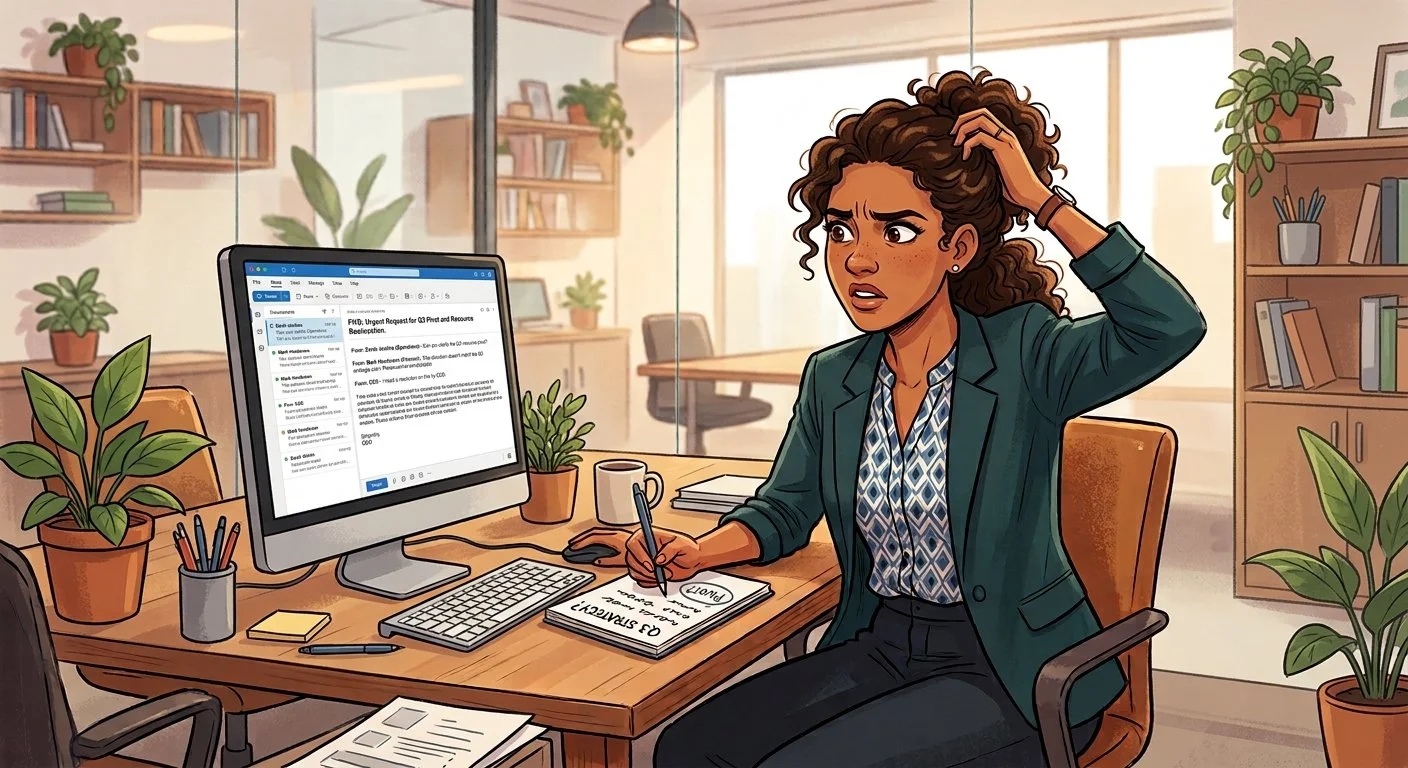
It’s easy to confuse your book designer. Here are a few examples of how to do it—in other words, if you’re confused, what you, as a client, should never do.
1. Confuse your designer with wrong file names, duplicate names, and missing files.
• Betty sent me her book files. She said her manuscript was copy edited and ready for layout. However, after downloading all the attachments, I immediately noticed that she had two files named Chapter 8—and six more chapters that also had duplicate names. Which files were right?
• Betty did not send all of the files; an entire block was missing. Where were chapters 21–32?
• After the layout was completed, Betty sent revised chapter files, each with an incorrect file name, with these instructions: “Replace Chapter 30, named Ch. 31; and replace Ch. 33 named Ch. 34.” What?!
Before sending files to your designer, make sure they are clearly named, numbered correctly, and that you have included everything. A little organization on your end can save a lot of time on the other end.
2. Confuse your designer by setting up a Dropbox folder and forgetting to send an invite.
Don said his manuscript was copy edited and ready for layout. His manuscript had twenty-six chapters. I expected changes after the layout was completed.
Changes indeed—a total re-do of his book (a second layout revised to fifteen chapters)! I asked Don to move the old files out of the Dropbox so I would not be confused. Instead, he sent me a link to a new Dropbox folder.
More changes followed after the second layout. This time, Don forgot to send me an invite to another new folder with the corrections. I never got the invite.
This was a case of unclear communication and not knowing how to work in Dropbox.
If you are using Dropbox or another file-sharing service, make sure your designer has access to the correct folder and knows which files are current. Don't create a new folder every time you have a revision unless there is a good reason to do so.
3. Confuse your designer by not using Acrobat’s markup tools.
Please don’t give me a Word document with your changes. It can be hard to find and understand where the edits should be in my InDesign file.
For example:
“Ch. 3, p. 26, paragraph 4, sentence 4—Delete second his.”
Huh?
This is what I call hunting and pecking—and it takes twice as long to figure out exactly what needs to be changed.
A marked-up PDF visually shows me where the changes are. The Comments list also gives me a convenient way to keep track of each correction, and I can add a checkmark after fixing each edit.
Learn how to use Acrobat’s commenting and markup tools so your designer can quickly see exactly what needs to be changed. As an author, you need to understand and be able to use the tools of your trade. You don’t have to be an expert, but you do need to be understandable.
Confusion costs time—and money.
Confusion can lead to frustration for the designer and additional fees for the author. That’s why I’m venting.
And there's another issue worth mentioning: both of these authors told me their manuscripts were copy edited and ready for layout. Really?!
Based on the number of edits and alterations that followed, I don't think so. When an author continues making substantial changes after the first layout has been completed, it can become costly. I charge by the hour after the first layout has been submitted for review, so additional changes mean additional time—and additional expense for the author.
The bottom line: Be organized, be clear, and don’t confuse your designer.
Thanks for listening.
Need a book designer?
If you’re ready to turn your manuscript into a professionally designed book, I can help. My goal is to make the process as clear and straightforward as possible—from preparing your files and planning the layout to reviewing proofs and getting your book ready for publication.
Ready to get started? Learn more about my book design services or contact me to schedule a free one-hour consultation.